NFC Tap Sign-In: A Beginner’s Guide for Offices
16 September 2026
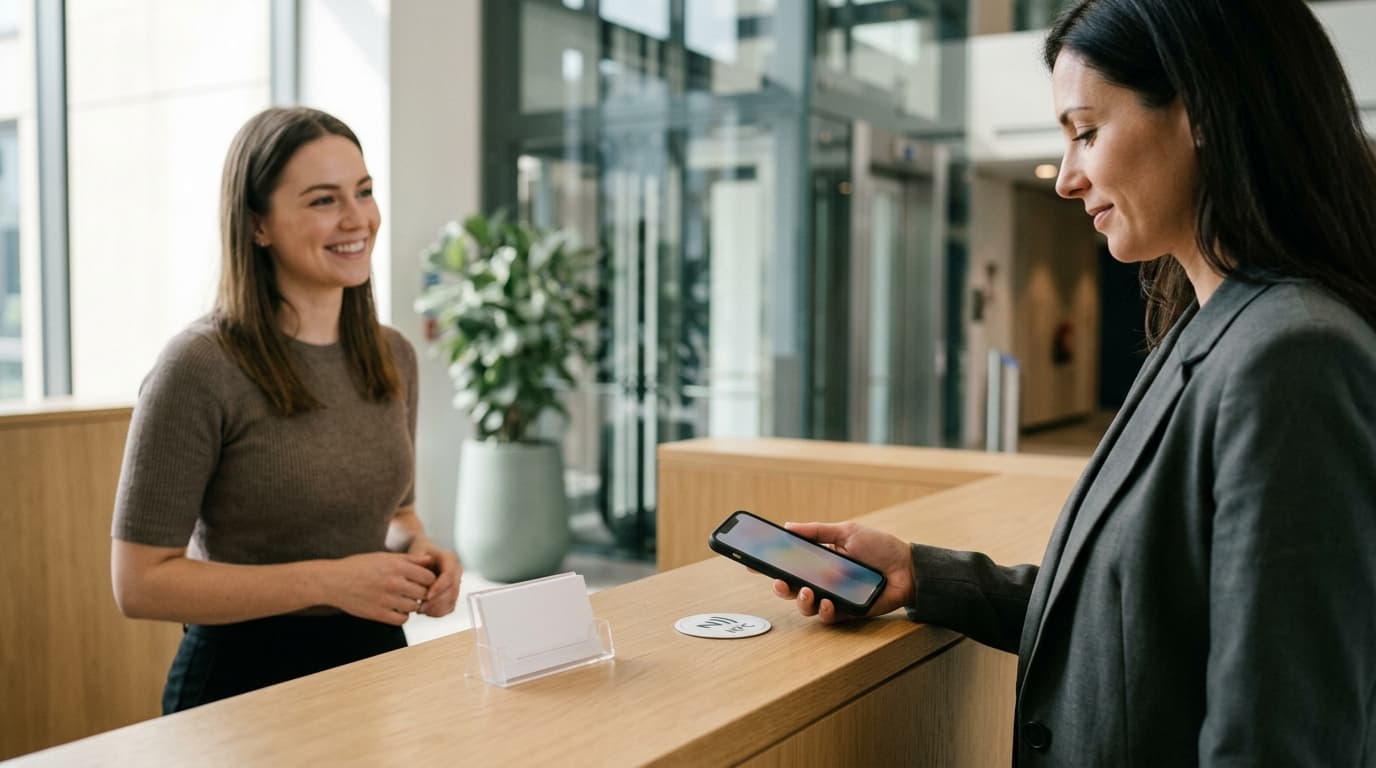
NFC (Near Field Communication) lets a visitor tap their phone against a small tag and land straight on your sign-in page. No app to download, no kiosk to buy, no typing a long URL. For a busy office, it turns the front-desk ritual into a two-second tap and a quick form.
Here's what you need, how to set it up, and the mistakes to avoid.
What You'll Need
- An NFC tag (a sticker or card) placed at your reception desk. These are inexpensive and reusable.
- A phone with NFC to test with — most modern phones have it.
- A visitor management system that supports NFC tap sign-in.
- A backup sign-in method — a printed QR code, for example — in case someone's phone can't tap.
How Visitors Tap In
The visitor flow is short and self-explanatory:
- Visitor taps their phone on the NFC tag at reception.
- Their phone reads the tag and opens your sign-in page.
- They enter their name, host, and any required details.
- The host is notified, and the visitor is signed in.
Most people have tapped a phone to pay for coffee, so the gesture already feels familiar. If their phone doesn't support NFC, they can fall back to the QR code at the same desk.
Setting It Up
Here is the step-by-step for an office administrator:
- Choose a location for the tag. A fixed spot on the reception desk, where visitors naturally approach, works best.
- Write the tag. Your sign-in page URL is all you need. Use a phone NFC-writing app to store that link on the tag, then test it.
- Test with several phones. Try an iPhone and an Android device, both with and without a case. If the tag is finicky, reposition it.
- Add a fallback QR code next to the tag so visitors without NFC aren't stuck.
- Brief your reception team so they can guide anyone who looks uncertain.
Entrica makes this straightforward: each customer gets their own subdomain, and the NFC tap simply points the visitor's phone to that sign-in page. There's no app download and no extra hardware to buy.
Common Mistakes to Avoid
- Placing the tag where people can't reach it. If visitors have to stretch across a desk or move papers, they won't use it. Keep it flat, visible, and unobstructed.
- Using a cheap tag with a weak read range. Some tags only work when the phone is perfectly centered. Test before you commit.
- Forgetting the backup. A visitor with an older phone, a dead battery, or NFC disabled needs another route. Always keep the QR code.
- Not telling the reception team. If no one at the desk knows what the tag is for, visitors will ignore it. A one-line explanation from your front desk makes the whole flow work.
- Never testing the notifications. When a visitor signs in, someone needs to receive the alert. Test this on the first day, not the first busy morning.
Making It Stick
NFC tap sign-in works best when it's the obvious option, not the hidden one. Put the tag where visitors look first, add a small sign that says "Tap to sign in," and keep the form short. The fewer fields you ask for, the faster the queue moves.
Visitors complete the whole flow in under 30 seconds on their own device, and your front desk stays focused on welcoming people instead of typing on a keyboard.
If you're ready to replace the paper sign-in sheet, try Entrica's 14-day free trial — every feature unlocked, no credit card required.